Remote support
Let’s get you connected.
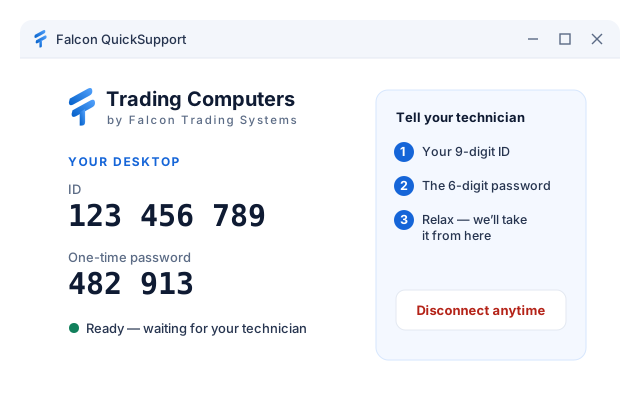
Stay on the phone with your Falcon Trading Systems technician, download Falcon QuickSupport, and read them the two numbers it shows. That’s it — no account, no installation.
Remote support
Stay on the phone with your Falcon Trading Systems technician, download Falcon QuickSupport, and read them the two numbers it shows. That’s it — no account, no installation.
How to launch
Follow along while you’re on the phone with your technician. The whole thing usually takes less than a minute.
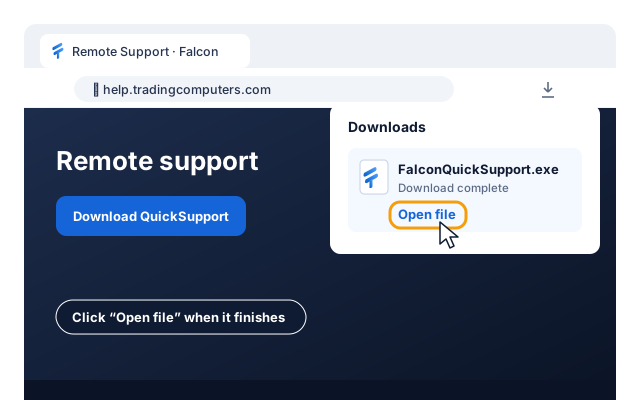
Click the blue Download button above. When the download finishes, click Open file in your browser’s downloads list (or open it from your Downloads folder).
Your browser may ask whether to keep the file. Choose Keep.
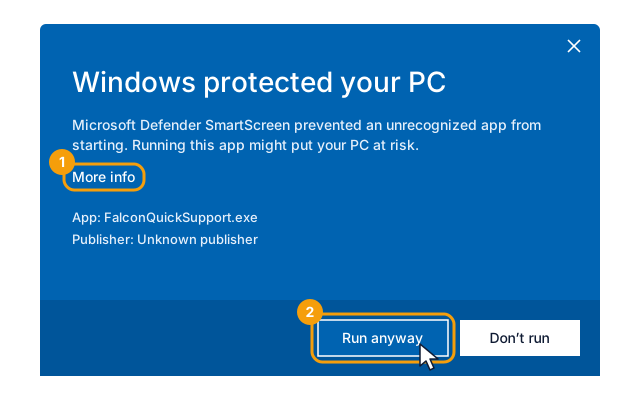
Falcon QuickSupport opens right away — nothing is installed. If Windows shows “Windows protected your PC”, click More info, then Run anyway. When Windows asks “Do you want to allow this app to make changes?”, click Yes so your technician can fully help (for example, with settings and restarts).
Only do this for the file you downloaded from this page while speaking with your technician.
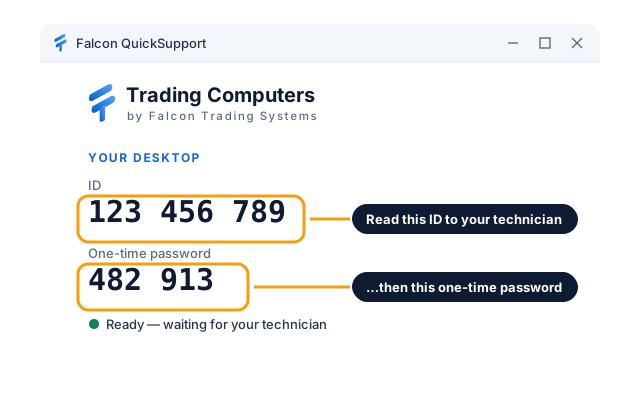
Read your technician the 9-digit number under ID and the 6-digit one-time password. Share them only with your Falcon technician.
The password changes every time you open QuickSupport, so an old one can’t be reused.
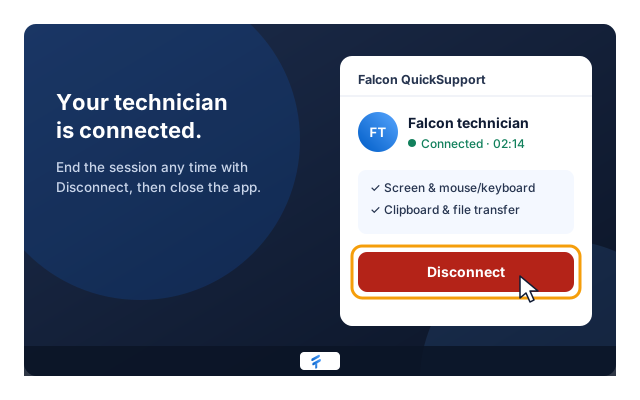
A small panel shows when your technician is connected. If you skipped the administrator prompt, your technician may ask you to approve it again. When you’re done, click Disconnect and close QuickSupport.
You can end the session at any time — just click Disconnect or close the window.
Your security
QuickSupport only accepts a connection from an authorized Falcon technician — and only with the password you give them.

Every technician signs in with multi-factor authentication. Connections go through Falcon’s own encrypted relay.

Nobody can connect without the one-time password shown on your screen, and it stops working when you close the app.

QuickSupport doesn’t install anything or run in the background. Close it and the connection is gone.
Troubleshooting
Open the downloaded file normally by double-clicking it — don’t right-click and choose Run as administrator. If the message keeps appearing, Windows User Account Control (UAC) may be turned off on your PC. Let your technician know; they can help you turn it back on or support you another way.
Make sure the Falcon QuickSupport window is open and not minimized — look for the Falcon icon on your taskbar. If the password area is blank, close QuickSupport and open the downloaded file again.
Falcon QuickSupport is for Windows 10 and 11 (64-bit). For other devices, let your technician know and they’ll help another way.
Click Disconnect in the session panel, then close Falcon QuickSupport. Your technician can’t reconnect without a new password.
Call Falcon Trading Systems support and a technician will walk you through it.